

Showing posts with label pc tips. Show all posts
Thursday, May 9, 2013
How to delete Google Search History/Cache?
Hi friends, in this tutorial I want to discuss about deleting Search History in google?
Before reading this trick first you need to know the difference between a normal browser history and google search history.
Difference between a normal browser history and google search history:
Browser history contains all the history of the data browsed by you. This data is stored on your computer. You can remove this data by deleting it from your browser settings.
Google search history is the History of data that is searched by you on google. This data is saved on google. When you are logged into your google account and search for anything via Google Search then that data will be stored on google history. Many of my friends have asked me to give a solution for this problem and I gave them the solution. After many days when I wanted to write a good post on this blog I got this idea to share with you. So I think this would be a perfect answer for those who want to delete their search history on google.
Sometimes you want to remove the history because of your privacy. Then you can follow these steps.
Steps to Delete Google Search History:
Here is a simple trick to delete google search history explained step by step. Please follow these steps and enjoy.
- First Click this link. (http://www.google.com/history Copy this URL and paste it in your address bar.)
- Login to your google account with your google id and passwords.
- Now you will redirected to a page where all your history is located.

4. Now you can see the categories of your search history.


6. Select what to remove. If you want everything to be removed then tick the box at the top and click on Remove items.

Please comment below if you have anything to share or ask your query. Thank you. Labels: internet tips, pc tips, Tips and Tricks
Monday, January 28, 2013
10 Great NotePad Tricks To Scare Your Friends
You all know that notepad is a simple text editor. Let’s have a discussion on some cool tricks that can scare your friends. You can perform these simple tricks on your computer using your notepad tool. I have some tricks for you here. You need to type them using any text editor or notepad. You can also play with your friends using these tricks.
Note: These tricks may irritate your friends. These tricks will also work to fool your friends.

Non-stop message appearing on your friend’s computer.
Type :
@ECHO offSave it as pc.bat and ask your friends to open it.
:Begin
msg * Hi
msg * Are you having fun?
msg * I am!
msg * Lets have fun together!
msg * Because you have been o-w-n-e-d
GOTO BEGIN
Make your friends Keyboard keys getting typed continuously:
Type :
MsgBox “stop me..! if you can”Save it as pc.vbs and send it to your friends.
Set wshShell =wscript.CreateObject(“WScript.Shell”)
do
wscript.sleep 100
wshshell.sendkeys “{bs}”
loop
Convey your friend a message and shut down his/ her computer.
Type :
@echo offSave it as pc.bat and send it to your friends.
msg * I don’t like you
shutdown -c “Hahahah You are Doomed” -s
Toggle your friend’s Caps Lock button simultaneously
Type :
Set wshShell =wscript.CreateObject(“WScript.Shell”)Save it as pc.vbs and send it to your friends.
do
wscript.sleep 100
wshshell.sendkeys “{CAPSLOCK}”
loop
Frustrate your friend by making their keyboard hit Enter simultaneously whenever they press a key :
Type :
Set wshShell = wscript.CreateObject(“WScript.Shell”)Save it as pc.vbs and send it to your friends.
do
wscript.sleep 100
wshshell.sendkeys “~(enter)”
loop
Lock your friend’s keyboard and make him type “You are a fool” simultaneously:
Type :
Set wshShell = wscript.CreateObject(“WScript.Shell”)Save it as pc.vbs and send it to your friends.
do
wscript.sleep 100
wshshell.sendkeys “You are a fool.”
loop
Open Notepad, slowly type anythingand freak your friends out:
Type :
WScript.Sleep 180000Save it as pc.vbs and send it to your friends.
WScript.Sleep 10000
Set WshShell = WScript.CreateObject(“WScript.Shell”)
WshShell.Run “notepad”
WScript.Sleep 100
WshShell.AppActivate “Notepad”
WScript.Sleep 500
WshShell.SendKeys “Hel”
WScript.Sleep 500
WshShell.SendKeys “lo “
WScript.Sleep 500
WshShell.SendKeys “, ho”
WScript.Sleep 500
WshShell.SendKeys “w a”
WScript.Sleep 500
WshShell.SendKeys “re “
WScript.Sleep 500
WshShell.SendKeys “you”
WScript.Sleep 500
WshShell.SendKeys “? “
WScript.Sleep 500
WshShell.SendKeys “I a”
WScript.Sleep 500
WshShell.SendKeys “m g”
WScript.Sleep 500
WshShell.SendKeys “ood”
WScript.Sleep 500
WshShell.SendKeys ” th”
WScript.Sleep 500
WshShell.SendKeys “ank”
WScript.Sleep 500
WshShell.SendKeys “s! “
Frustrate your friend by making their keyboard hit Backspace simultaneously whenever they press a key :
Type :
MsgBox “Let’s rock and roll”Save it as pc.vbs and send it to your friends.
Set wshShell =wscript.CreateObject(“WScript.Shell”)
do
wscript.sleep 100
wshshell.sendkeys “{bs}”
loop
Open Notepad continuously in your friend’s computer:
Type :
@ECHO offSave it as pc.bat and send it.
:top
START %SystemRoot%\system32\notepad.exe
GOTO top
Continuously pop out your friend’s CD or DVD Drive.
Type :
Set oWMP = CreateObject(“WMPlayer.OCX.7″)Save it as pc.vbs and send it to your friends.
Set colCDROMs = oWMP.cdromCollection
do
if colCDROMs.Count >= 1 then
For i = 0 to colCDROMs.Count – 1
colCDROMs.Item(i).Eject
Next
For i = 0 to colCDROMs.Count – 1
colCDROMs.Item(i).Eject
Next
End If
wscript.sleep 5000
loop
After performing these tricks if you want to stop them, simply end the process wscript.exe from the task manager. For .bat files simply restart your computer once and everything will be back to normal again. Labels: pc tips, Tips and Tricks
Wednesday, January 16, 2013
Abort Shutdown in windows
Hi friends, Sometimes you may click shutdown button unfortunately by a mistake and you will try to stop the shutdown process. You may lose your data or files without saving them. But this technique will be useful to you when this situation occurs to you. Just follow these steps to avoid shutdown.Follow these steps:
- Right click on your mouse anywhere of your desktop in clean area.
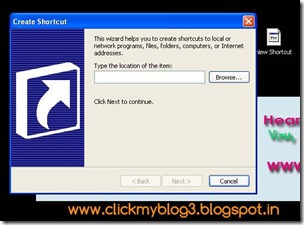
- Select new and choose shortcut.
- Then you will get this window.
- Type “shutdown -a” in box below “Type the location of the item:”
- Click “next” to continue.
- Now type any name in the box as title for the shortcut and click finish.
- Now you are done with this trick. Whenever you want to avoid shutdown or restart just double click on this shortcut immediately.



How to enable USB ports disabled by virus?
Some kind of virus will block your USB ports. So you should know how to your computer files infected by virus. This article will be helpful for you enable the blocked USB ports and start working again as usual.
Follow these steps:
- First you have to install Turbo C or C++.
- Open TC and go to new, write this piece of code over there.
void main()
{
system(“reg add HKEY_LOCAL_MACHINESYSTEMCurrentControlSetServicesUSBSTOR /v Start /t REG_DWORD /d 3 /f”);
}
- Consider above system(……..); as a single line.
- Save this code as unblockusb.c and compile the program and run it.
- You will be now able to unblock your USB.
- Go to C drive where C is installed. Open TC and go to BIN, there you will find unblockusb.exe
- Run that program(unblockusb.exe) to repair the blocked USB ports.
Wednesday, December 12, 2012
Boost your Wi-Fi signals with cool drink tin-Pictures
. Follow these steps as shown in the pictures to Boost your Wi-Fi signals.


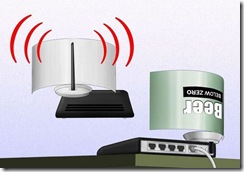
How to boost Wi-Fi signals using cool drink tin. Use waste cool drink tin for boosting your Wi-Fi signals. Labels: internet tips, pc tips, Tips and Tricks
Saturday, November 17, 2012
How to find out who used your computer in your absence
Did you ever want to know who is using your computer in your absence?If you have any important data on your PC and forgot to lock it or any data is being lost then you can watch out what is going on your Personal Computer in your absence. You can easily find what someone is doing with your computer.
Here is a simple step you have to follow:
Go to Start and click Run and type eventvwr.msc

All events on our computer will be stored in three log files: They are Application, Security, and System.
These logs can be reviewed and archived.
Now we want to check what actions are performed on our system. For this purpose we need look into the System log.
So now click on "System" on the left column to get a list of events.
There you can look for a date and time which you want to know i.e., for example if you want to check what happened when you were not at home you need to select a date and time of that. Then your computer will be turned off.
Double click on the eg: info and it will show you the detail.
You can also use this log to see how long someone was on the computer.
Just look at the time the computer was turned on and off for that during that period.
Simple.
Thanks for reading this post. If you need any help or have any questions on your mind please comment below. If you like my posts please share them with your friends and on social sites like facebook. Have a nice time.
Thursday, July 12, 2012
Javascript To Reveal The Hidden Password Behind Asterisk(*****)
 Hi friends,
This trick will help you to find out the password hidden behind *****. Here is small javascript that enables you to find out the hidden password behind the asterisks.
Below are the steps to be followed:
- Open any website such as www.gmail.com in your browser.
- Type your “user name” and “password”.
- Just copy the below given script in 4th step and paste it in the address bar of your browser and hit “ENTER” button.
- javascript: alert(document.getElementById('Passwd').value);
- A pop up button opens that shows the PASSWORD that you have typed.
- Note: This trick may not work on Firefox browser.
Wednesday, June 27, 2012
Windows Send To menu Trick
 Hi friends, I am back with a new trick for your windows operating system. Commonly you use “Right click'” to copy and paste any files or folders or you may be using “CTRL+C” to copy and “CTRL+V” to paste them. Now you can customize your SEND TO menu which you will find on a right click. You will find it very easier than copy and pasting, and is an easier process which you can do it in a minute.
The following are the steps involved in customizing your send to menu:
- First you need to make all your hidden files to visible by clicking on
Tools—>Folder options—>then click on view on the tab menu—>now select show hidden files and folders.
- Now go to C:\Documents and Settings\user name\send to
- Open My computer and select most used folders.
- Create a shortcut of the most used folders in SEND TO FOLDER.You can do this in different ways.
- Right click -> send to desktop(create shortcut) and move the shortcut from the desktop to the C:\Documents and Settings\user name\send to
- Copy the most used folder and go to C:\Documents and Settings\user name\send to and right click --> paste shortcut.
- Don’t forget to rename the shortcuts as send to videos, send to photos.
- Now enjoy the trick by following this steps.
Monday, June 4, 2012
Free 3G Data Trick for MTS Mblaze 2012
Hi friends, I have posted airtel(Airtel 3G 2012| get free 3G access on airtel | free aitel internet) and bsnl(Unlimited free GPRS tricks for BSNL 3G | BSNL 2012) tricks before. In this post I will explain you the trick for MTS MBlaze. You can use this trick to get free 150MB data. To get get this free data on your MBlaze just follow these steps.- First go to MTS website.
- After clicking on MTS link, you will find below image on left side in MTS website. Click on Get Free Data.

- Now just enter your name, email and mobile number and submit it.

- You will receive an email with details for claiming the Free Data usage for your MBlaze.
- Now check your balance.
Reconnect Modem > Settings>Check My Balance Button.
Enjoy this Free Data Usage for MBlaze. Labels: internet tips, mobile tips, pc tips, Tips and Tricks
Monday, May 28, 2012
Airtel 3G trick 2012| get free 3G access on airtel | free aitel internet

I have already provided you BSNL 3G trick and I hope all BSNL 3G users are enjoying that trick on their mobiles as well as their PC. In this post I will explain you how to use your airtel 3G for free. With this trick you can able to run internet on airtel at very fastest speed. This trick will also work on your PC as well as your mobile. I think this trick would be the best one on the for you, if you are searching for AIRTEL 3G tricks. You can use this trick on your mobile phone and also on your airtel 3G data cards.
Follow The some simple steps for airtel 3g trick
- First You Download opera mini handler.
- Open the opera browser.
- In proxy type real host
- In proxy field type m.twitter.com
Search terms: mobile tips, Tips and Tricks, digital tricks, tri3g tips, 3g tricks, Airtel tricks, airtel 3G tricks
Thank you for visiting. If you like this post please share it on facebook and Google+ by clicking on the buttons below. Labels: internet tips, mobile tips, pc tips, Tips and Tricks
Wednesday, April 25, 2012
Application Log File Is Full Windows - Error Message
Hi Friends, did you ever got an error message "Application Log File Is Full". Are you in search of a solution for this problem. Then here is an explaination for "how to troubleshoot the Windows error message: The application log file is full." This error will be shown on Windows 2000 or Windows XP only.You would get an error as below shown in red colour sentence:
Windows 2000 or XP gives the following error message:"The Application Log File is Full."
Why do we get such an error?
Ans.If your event log is so huge within 7 days that you are getting this error, there’s probably something seriously wrong. You should inspect your event log to understand what is causing all of the errors… more on that in a future article.
Here you have a solution for this error to be disappeared.
Just follow the below instructions and you will be done.
Go through the steps below and follow it one by one.
You have change the event viewer settings to "Overwrite as needed." But how to do it?Follow the rules with the help of screen shots given below.
- Click on the Start Menu.
- Choose Programs.
- Choose Administrative Tools
- Click on Event Viewer.
- Click on the Start menu.
- Choose Settings and click on Control Panel, for XP just click on Control Panel.
- Double-click on Administrative Tools.
- Double-click on Event Viewer.
- Then the screen would be appeared as shown below.

Right click on System and select properties.

Here you could clear the log, increase the size, or just set the system to overwrite events as needed. Go to General and increase the Maximum log size.

You have to increase the Maximum log size and then Overwrite events as needed

For those who use Windows Vista, follow this:
In the Event Viewer:
- Right click on Application and select Properties.
- Under the General tab, select the Overwrite events as needed option.

Thank you. If you are satisfied with this please share this post on Facebook and Twitter or just click on like below. Labels: pc tips, Tips and Tricks
Subscribe to:
Comments (Atom)

